PLEASE CREATE AN ACCOUNT AND BE LOGGED ON TO IT TO MAKE SURE YOU DO NOT LOSE YOUR CUSTOM DESIGN AND IN ORDER FOR THE DESIGN TO BE ABLE TO BE EDITED LATER IF NEEDED.
Monthly photos are to be selected from the library of over 200 images. Monthly quote can be edited or deleted. Depending of your internet connection speed, the Interactive Designer might take a bit to load the first time. After designing calendar, it will stay in your Shopping Cart for checkout OR to hold until further edits. Uploaded images should be 300dpi but designer will accept images over 150dpi. If you're using images sent from a device like a cell phone, make sure the image retains its highest resolution (keep original size).
Basics
LEFT MENU: Each page will have a series of buttons on this menu that when clicked, they allow the editing of that specific field.
BOTTOM MENU: Used for navigating from page to page, and to manage your uploaded and selected images (assets).
TOP MENU: Used for adding custom images and text, zoom and view settings (gear), which we recommend is used as fullscreen).
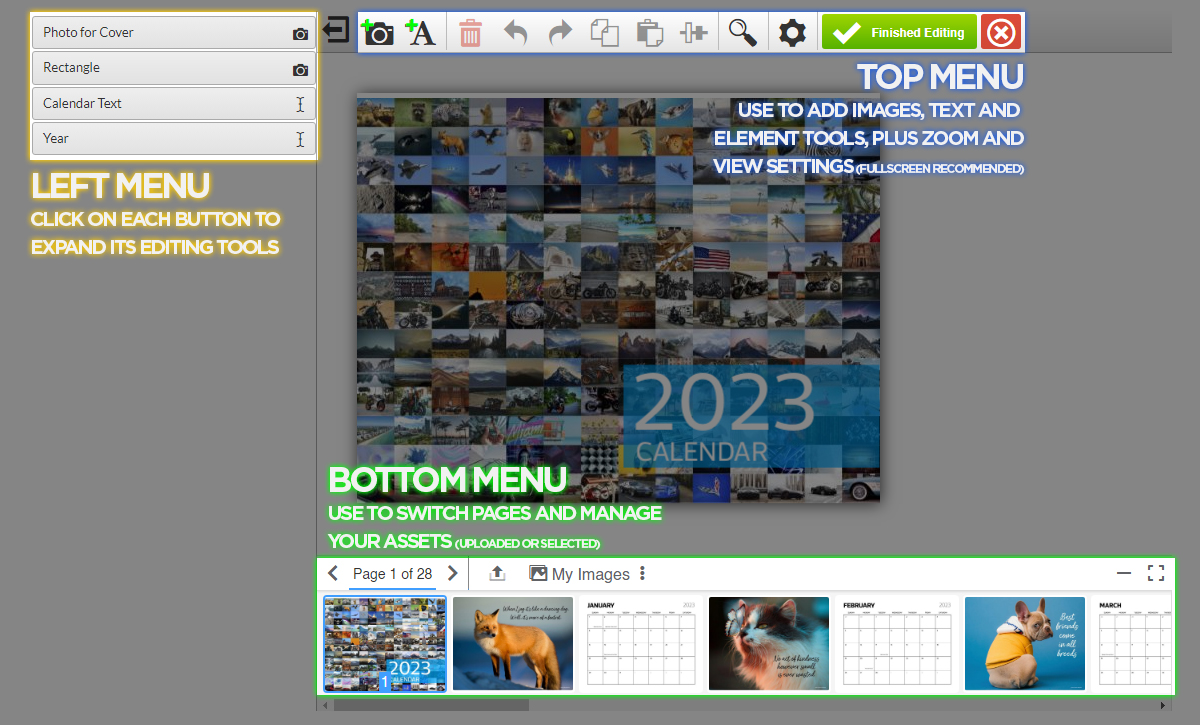
Month Images
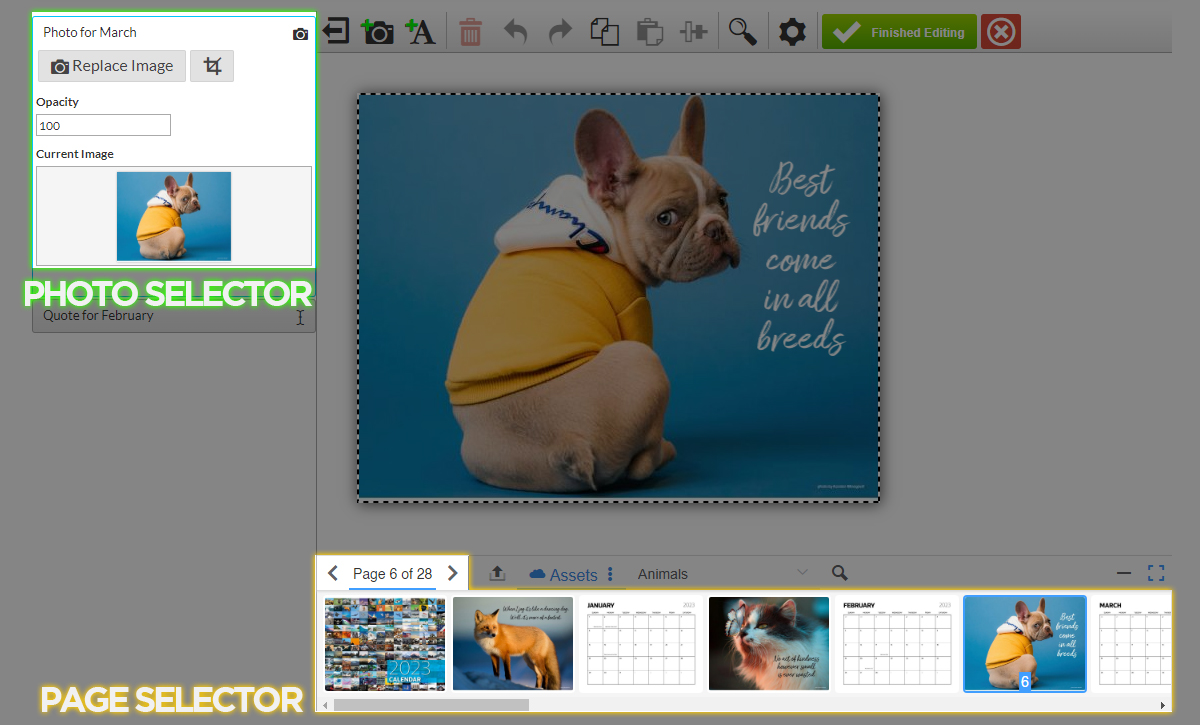
Navigate Pages with the PAGE SELECTOR. Replace Image with PHOTO SELECTOR:
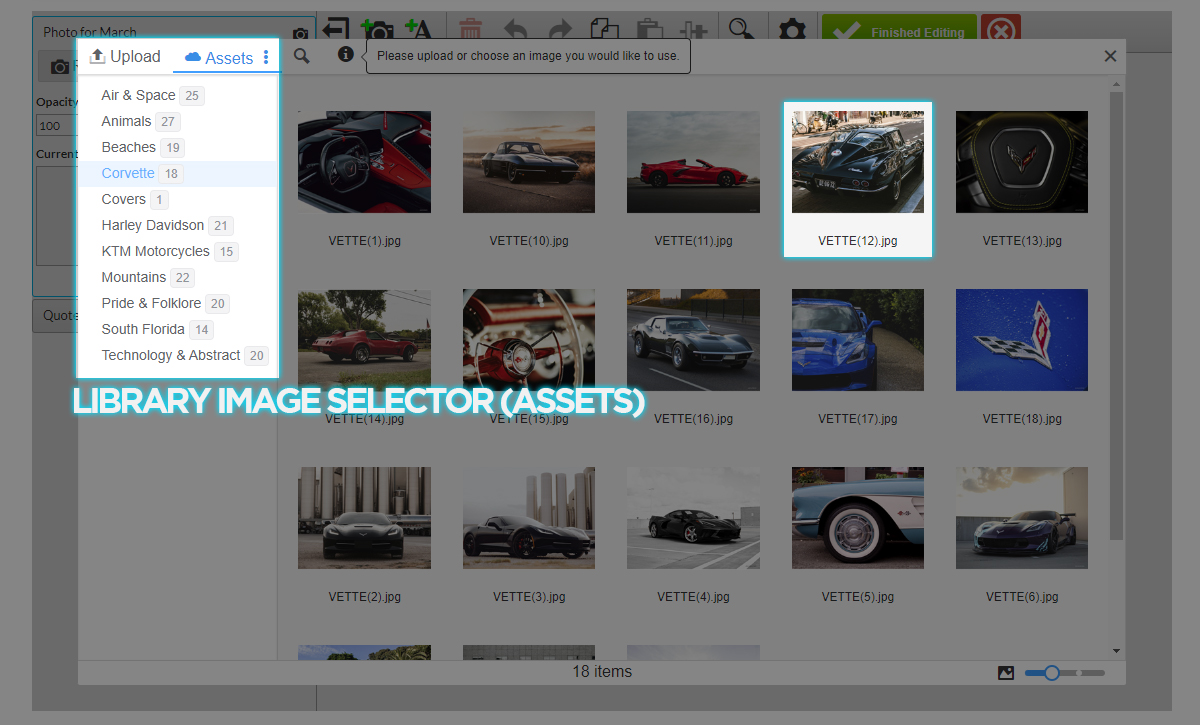
Select Image with the LIBRARY IMAGE SELECTOR (ASSETS). Use menu to change Categories:
Click on FINISH CROPPING: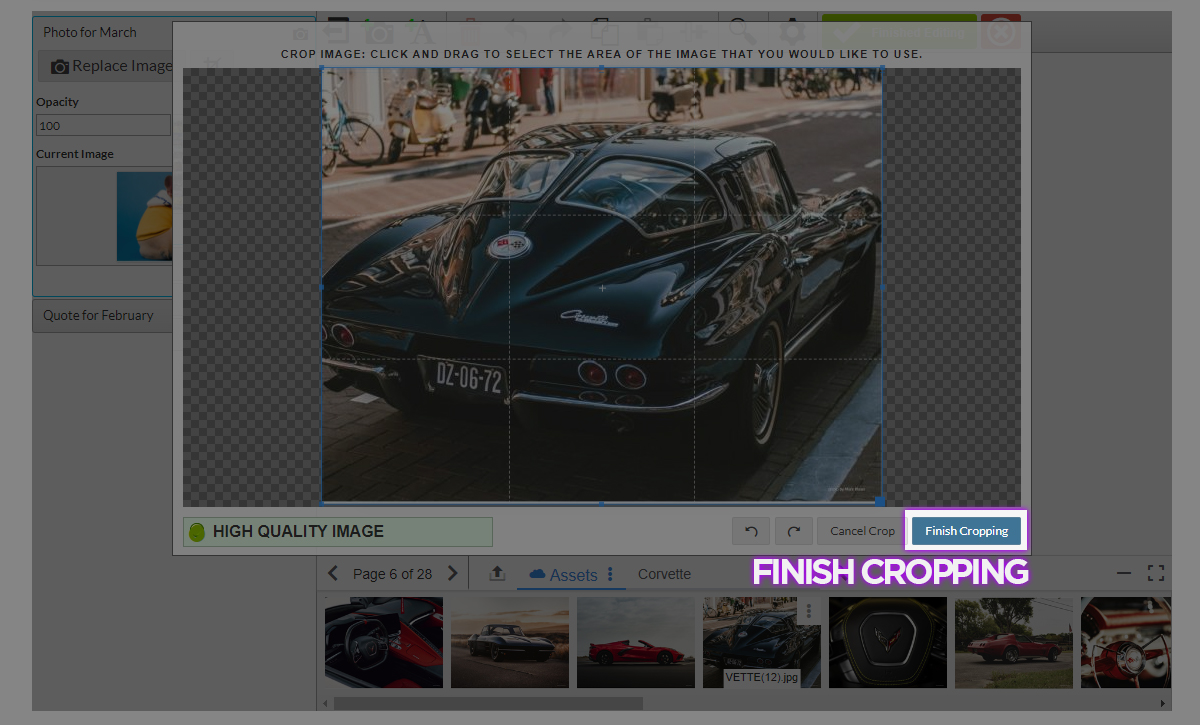
Month Days
Use DAILY TEXT EDITOR to add or edit text for 365 days. UseAdd Image and Add Text tool to add random image or text: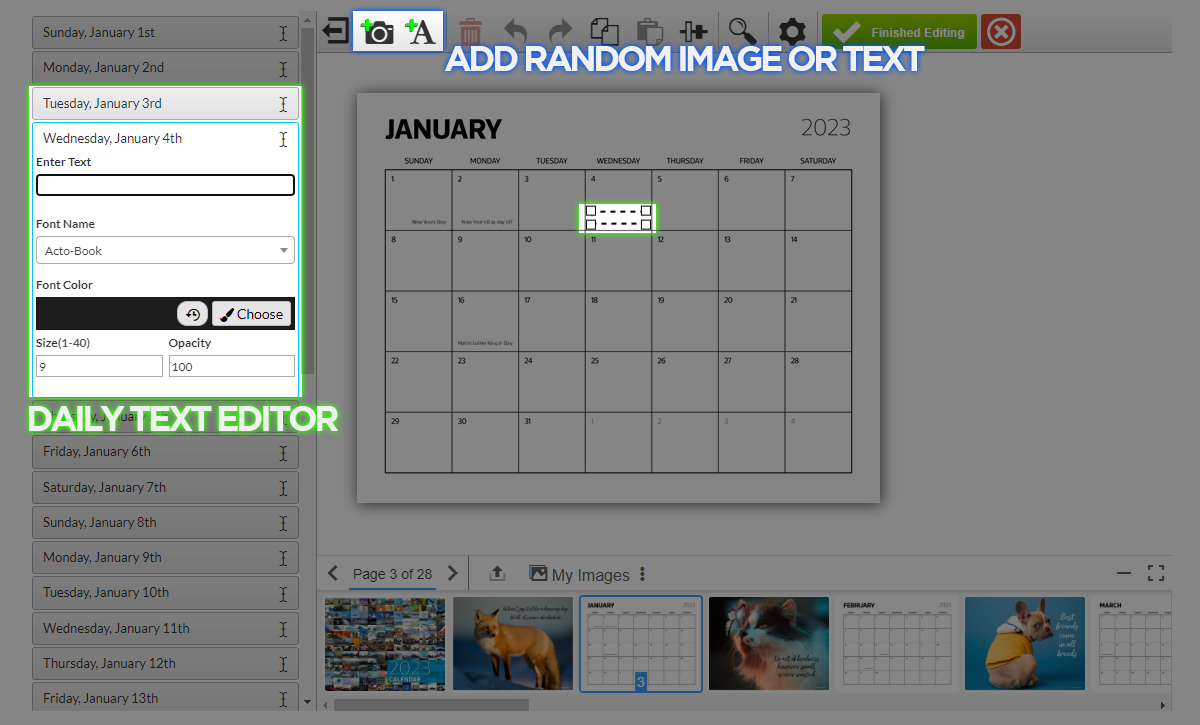
Finish Editing
When your design is ready, or if you want to hold it for future edits, click on the big green "Finished Editing" button on the top right of the designer. After reviewing, click on the "I accept the conditions" check box and click "Continue". The Calendar will remain in your shopping cart until you're ready to checkout.
"Save For Later"
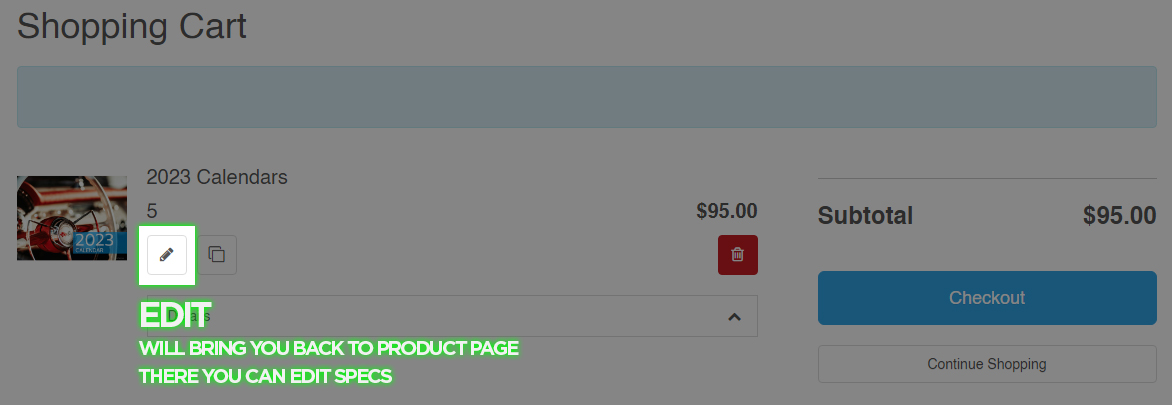
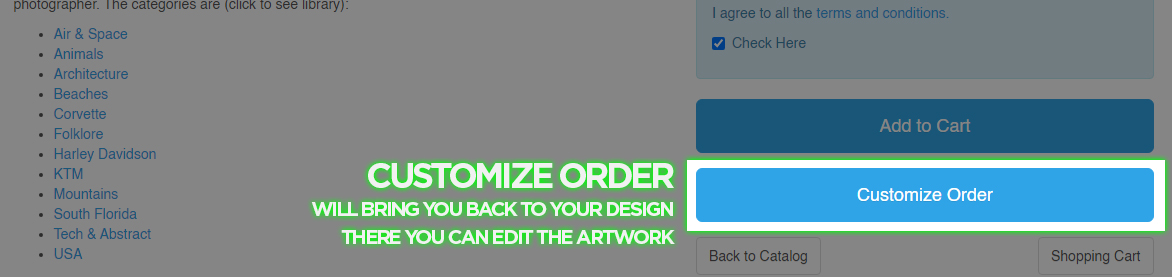
The customized design will remain in your product's shopping cart until ready for checkout. To continue editing the artwork or to revise your specs, go to your Shopping Cart and click on the "Edit" button, this will bring you to the product calculator page where you can edit the specs. To continue to edit the artwork, click on "Customize Order" again to re-launch the designer. Rinse and repeat as many times as necessary.
have fun :)